Most guides on how to create a YouTube channel are two interface redesigns out of date. This one matches what you’ll actually see in 2026. It also covers the parts people skip, like handles, Brand Accounts, and image sizes that stopped being current a while ago.
Here’s the short version. Sign in to YouTube with a Google Account, open Settings, then choose Add or manage channel(s) and click Create a channel. Pick a name, a picture, and an @handle, then hit Create channel. Setup costs nothing, and the clicking part takes about five minutes.
TL;DR
- A Google Account gets you watching. A channel is what lets you upload, comment, and build playlists.
- Choose a Brand Account if anyone else will ever touch the login. Switching later is messy.
- Your @handle is your public address. It has to be unique, 3-30 characters, and you can change it twice per 14 days.
- Banner minimum is 2048 x 1152 px. Thumbnails are now recommended at 3840 x 2160 px, not the old 1280 x 720.
- Earning starts at 500 subscribers for fan funding features, and 1,000 subscribers for a share of ad revenue.
What you need before you start
Almost nothing, which surprises people. There’s no fee, no application, and no waiting list.
| Item | Detail |
|---|---|
| Cost | $0; setup is free |
| Time needed | About 5 minutes to create, 20 to 30 minutes to finish Profilefile |
| Requirement | A Google Account, plus phone verification for custom thumbnails |
| Account type | Personal channel or Brand Account |
| Handle | Unique, 3-30 characters, letters, numbers, underscores, hyphens or periods |
| Where you manage it | YouTube Studio at studio.youtube.com |
Gear can wait. A phone camera and quiet room beat a fancy setup with bad sound. Planning tutorials or gameplay? Learn the screen capture shortcuts on a Chromebook or whatever machine you record on. Grabbing clean stills for thumbnails gets old fast without them.
How to create a YouTube channel in nine steps

- Sign in to YouTube on a computer or the mobile site using the Google Account you want tied to the channel.
- Click your profile picture in the top right corner, then click Settings.
- Go to the Account section and select Add or manage channel(s).
- Click Create a channel. For a business or shared channel, go to your channel list first and click Create a new channel, which builds a Brand Account.
- Type the name you want viewers to see, then enter your @handle.
- Choose a profile picture and click Create channel. You now have one.
- Open YouTube Studio, select Customization, Profile, and add your description, links, and a contact email.
- Upload your banner image from the same Profile tab, then click Publish.
- Verify your account at youtube.com/verify so you can upload custom thumbnails and longer videos.
That’s the whole mechanical process. Everything after it is judgment, not clicking.
Personal channel or Brand Account?
This is the decision worth slowing down for. A personal channel sits directly on your Google Account, and only you can manage it. A Brand Account sits alongside it, carries its own name, and lets you add other owners, managers, and editors through channel permissions. Nobody has to share a password.
Pick the Brand Account if you’re building anything for a business, a team, a band or a side project you might sell. Pick the personal channel if it’s genuinely just you and always will be. The choice you make here is the one part of how to create a YouTube channel that gets awkward to reverse.
Niche matters more than either option, though. Look at what’s already crowded before you commit, because gaming content trends move quickly and a topic that felt wide open last year may be saturated now.
Your handle is your address now
Handles replaced the old custom URL system. You no longer need 100 subscribers to claim a readable link, which was the rule for years and still shows up in stale guides. Every channel gets a handle, and it becomes your URL automatically: youtube.com/@yourhandle.
The rules are short. Handles run 3 to 30 characters in Latin script, use letters and numbers, and allow underscores, hyphens, and periods anywhere except the first or last character. They can’t look like a URL or a phone number. They can’t already be taken, and yes, the good ones went years ago.
Two more things. Handles aren’t case-sensitive, so @BakeWithSam and @bakewithsam are the same address. You can change yours twice within any 14-day window, and the same limit applies to your channel name. Changing your name also removes a verification badge if you have one.
Banner, picture and thumbnail sizes for 2026
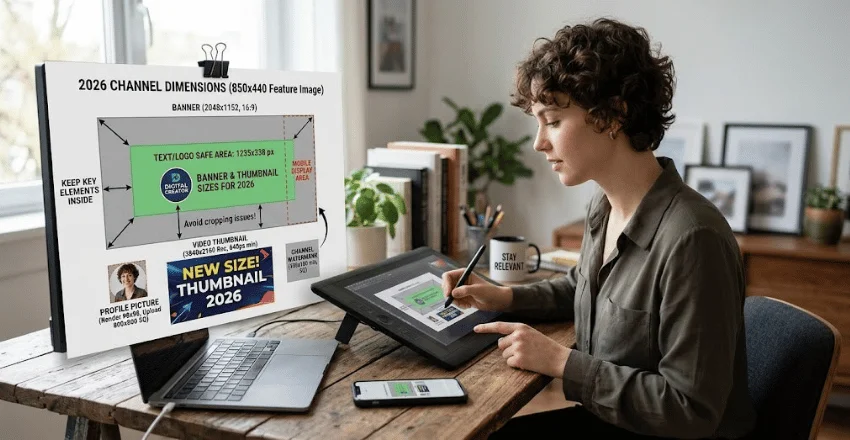
This is where old advice does the most damage. The thumbnail figure most articles still quote was replaced, and the safe area for banners is not the same as the upload size.
| Asset | Size | File limit |
|---|---|---|
| Banner, minimum upload | 2048 x 1152 px, 16:9 | 6 MB |
| Banner, text and logo safe area | 1235 x 338 px | Same file |
| Banner, recommended for TV | 2560 x 1440 px | 6 MB |
| Profile picture | Renders at 98 x 98 px, upload square | 15 MB, no animated GIFs |
| Video thumbnail | 3840 x 2160 px recommended, 640 px minimum width | 2 MB on mobile, 50 MB on desktop |
| Channel watermark | 150 x 150 px minimum, square | 1 MB |
Keep every word and logo inside that 1235 x 338 safe area. Anything outside it survives on a wide monitor and gets cropped on a phone. Shorts thumbnails work differently: you pick a frame from the video, and once it’s set you can’t swap it.
Your first upload
Publish something before the branding is perfect. A channel with one real video and a plain banner beats an empty channel with a beautiful one.
Film on the phone in your pocket. Modern handsets shoot 4K, and the limiting factor is nearly always audio and lighting rather than the sensor. Get the phone side sorted first, whether that’s storage, a tripod mount or sharing a WiFi password from your iPhone so uploads finish without eating your data.
Write the title before you film. It forces you to name the promise you’re making, and it stops the rambling nine-minute version nobody watches to the end.
When a channel can start earning
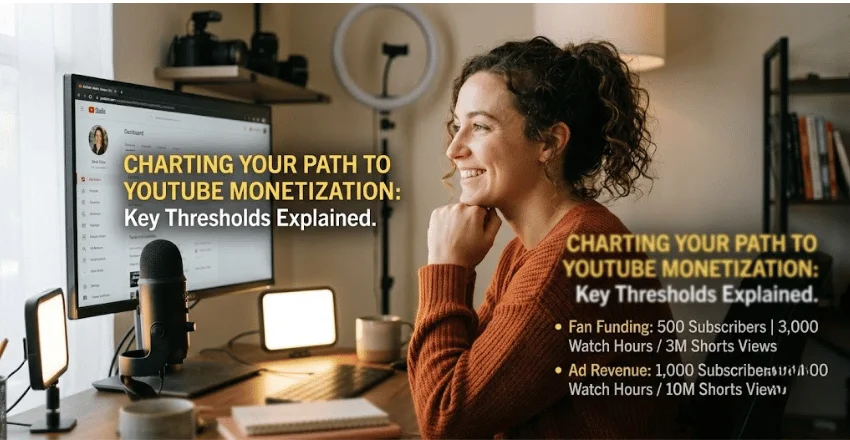
YouTube runs two thresholds, and confusing them is common. Neither guarantees anything, since every application goes through a review.
The first tier opens fan funding and Shopping features. You need 500 subscribers plus 3 valid public uploads in the last 90 days. On top of that, YouTube wants either 3,000 valid public watch hours over 12 months or 3 million valid public Shorts views in 90 days. That unlocks channel memberships, Super Chat, Super Thanks and gifts.
The second tier adds a share of ad revenue and YouTube Premium money. Here the bar is 1,000 subscribers with 4,000 valid public watch hours in the last 12 months. The Shorts route is 1,000 subscribers with 10 million valid public views in 90 days. Watch hours from Shorts in the Shorts Feed don’t count toward the 4,000 hours.
You also need two-step verification switched on, no active Community Guidelines strikes, and an AdSense for YouTube account. Reviews usually take about a month. Channels that go quiet for six months or more can lose monetization, so consistency is a rule here, not just advice.
Start today, refine later
Open YouTube, go through the nine steps above, and claim the handle you want before someone else does. Then upload one video this week. You can fix the banner, rewrite the description, and change direction entirely once you’ve seen how people respond, but none of that happens until the channel exists.
Frequently asked questions
Yes. There’s no charge to make one, upload videos or use YouTube Studio. The only cost is whatever gear or software you choose to buy.
You can. The steps for how to create a YouTube channel are the same on the mobile site. Commenting from the app can also trigger channel creation with an auto-assigned handle. Edit that handle in Studio afterwards.
No. Handles replaced that requirement, and your handle URL works from day one. Legacy custom URLs still resolve for channels that already had one.
Indexing is usually quick, but a name change can take a few days to display everywhere on YouTube. Give it time before assuming something broke.
Check the connection first, then the file size and format. Most stalled uploads are network problems rather than YouTube rejecting the video.