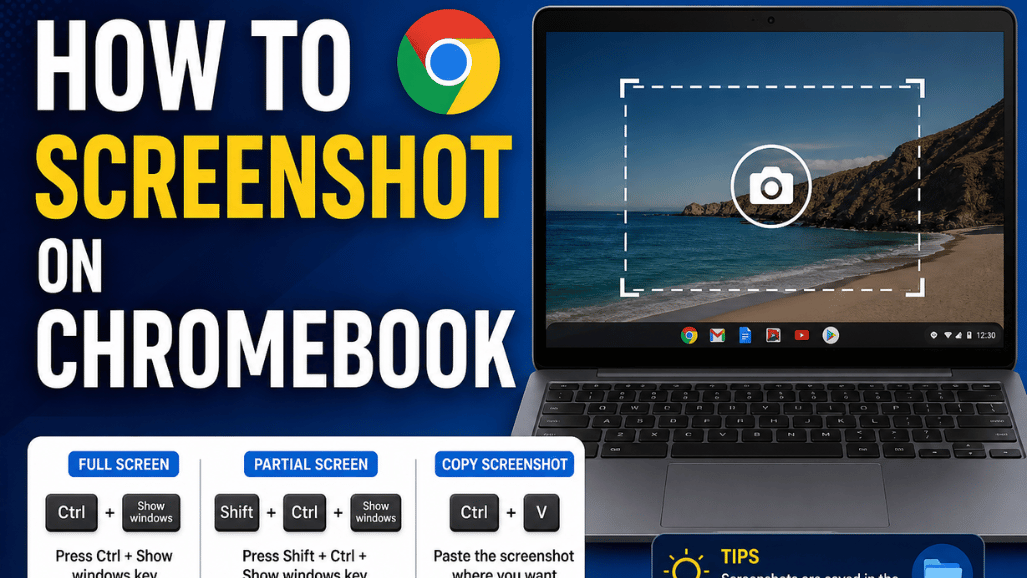
Here is the short answer on how to screenshot on Chromebook: press Ctrl + Show windows to grab the whole screen. Hold Shift as well to drag a box around part of it. Swap Shift for Alt to capture a single window. Every image lands in Downloads as a PNG and copies itself to your clipboard.
That covers most people. The rest arrive here for a different reason. Maybe the shortcut does nothing at all, or the picture saved as a solid black rectangle, or the keyboard is folded away behind a touchscreen.
What you need, and how long it takes
Most guides on how to screenshot on Chromebook stop at the key combinations. The sections below cover what happens when those combinations fail, which is what sends people searching a second time. One thing first. Plenty of captures are unnecessary, and anyone passing network details around can share a Wi-Fi password from an iPhone without an image at all.
| Detail | What to expect |
|---|---|
| Time needed | Under five seconds once you know the key |
| Difficulty | Easy, with no setup and no install |
| What you need | Any ChromeOS device, or a 2-in-1 in tablet mode, or a USB or Bluetooth keyboard |
| File type | PNG for stills, WebM or GIF for recordings |
| Default folder | Downloads, stored on the device itself |
| Works offline | Yes |
| Usual blocker | Admin policy on a managed device, or protected video |
Key takeaways
- Show windows is the key doing the work. It sits in the top row and looks like a rectangle with two lines beside it.
- Ctrl + Shift + Show windows opens the Screen Capture toolbar, where every option lives in one place.
- On an external keyboard, F5 stands in for Show windows.
- A managed school or work device can have capture switched off by policy. No key combination gets around that.
- Protected video and some Android app windows return a black rectangle by design.
- ChromeOS still has no built-in scrolling capture, but Chrome itself does.
Every ChromeOS screenshot shortcut in one table
Blame the keyboard. ChromeOS machines ship without a Print Screen key, so nothing in the top row announces itself as the screenshot button unless your model carries the newer dedicated Screenshot key.
| What you want | Built-in keyboard | External keyboard |
|---|---|---|
| The whole screen | Ctrl + Show windows | Ctrl + F5 |
| Part of the screen | Ctrl + Shift + Show windows, then drag | Ctrl + Shift + F5 |
| One window | Ctrl + Alt + Show windows, then click | Ctrl + Alt + F5 |
| Screen Capture toolbar | Shift + Ctrl + Show windows | Shift + Ctrl + F5 |
| One-press capture | The Screenshot key, on newer models | Not available |
| Tablet mode, full screen | Power + Volume down | Not applicable |
| Tablet mode, more options | Hold Power, choose Screen capture | Not applicable |
| Stop a screen recording | Search + Shift + X | Search + Shift + X |
| Paste the last capture | Ctrl + V | Ctrl + V |
| Open clipboard history | Search + V | Search + V |
Several other keys a Windows user reaches for are missing too, which is why old Windows habits misfire here.
- Delete: press Alt + Backspace.
- Caps Lock: press Search + Alt.
- Page Up and Page Down: Alt with the up or down arrow.
- Home and End: Search with the left or right arrow.
Capture the full screen, part of it, or one window
Three shortcuts handle nearly everything. Learn the middle one and the other two become optional, since a crop can always be widened to the full display.
- Open the screen you want to keep, then dismiss any notification sitting over it.
- Press Ctrl + Show windows to save the entire display.
- Press Ctrl + Shift + Show windows to turn the pointer into a crosshair.
- Drag a box around the area you want.
- Nudge the edges with the arrow keys, or press the space bar to move the whole box without resizing it.
- Press Tab if you would rather grab the corner handles than drag.
- Let go to save the crop.
- For one window, press Ctrl + Alt + Show windows, then click the window.
A preview thumbnail appears in the bottom corner. Click it. The image opens straight into the Gallery app, where a crop or a rotate takes about two seconds.
How to Screenshot on Chromebook With the Screen Capture Toolbar
The toolbar is where ChromeOS keeps the settings the bare shortcuts hide. As of August 2026 it still opens with Shift + Ctrl + Show windows, and it also sits in Quick Settings under Screen capture.
- Press Shift + Ctrl + Show windows, or click the clock and choose Screen capture.
- Leave the camera icon selected for a still image.
- Pick full screen, partial, or window from the three buttons in the middle.
- Click the gear icon if you want to change the save folder first.
- Take the shot, then check the preview.
Two behaviors catch people out. Every capture copies itself to the clipboard automatically, so Ctrl + V drops the image into a document or a chat window without you ever opening the saved file. The toolbar also stays put after a shot. Press Esc to dismiss it.
Screenshots in tablet mode with no keyboard
Fold or detach the keyboard and the shortcuts go with it. ChromeOS falls back to the same two-button combination Android uses on phones and on foldables such as the Samsung Flip 6.
- Hold the device so your fingers reach the power button and the volume rocker.
- Work out which end of the rocker is volume down in the current orientation, because it swaps when you rotate the screen.
- Press power and volume down together, then release both.
- For a crop or a single window, press and hold the power button instead, then choose Screen capture from the menu.
Models with a built-in stylus get an easier route. The pen menu in the shelf carries a capture region tool, which beats fumbling for two hardware buttons while holding a slab of glass.
Record the screen, or export a GIF
The same toolbar records video. Switch the camera icon to the camcorder icon, and the three area buttons keep working exactly as they did for stills.
- Press Shift + Ctrl + Show windows.
- Click the camcorder icon.
- Choose full screen, a region, or one window.
- Open the gear menu to turn on device audio, the microphone, or both.
- Toggle the front camera on if you want a small self-view bubble.
- Start recording, then stop with the red button in the shelf or Search + Shift + X.
Region recordings can save as a GIF rather than WebM, which suits a quick bug report. GIFs drop the audio and the camera bubble. The gear menu also carries a Show clicks and keys option, and for privacy it displays only combinations that include a modifier key, so your password never appears on screen.
Microphone input follows whatever your device already listens through, so Bluetooth earbuds like the Samsung Galaxy Buds3 feed the recording through that same setting.
Where your screenshots really save
Files go to Downloads. Downloads on ChromeOS is local storage, and it does not sync to Google Drive, so a Powerwash or a dead device takes every image with it. Students find that out at the worst possible moment.
Change the destination once and forget about it.
- Open the Screen Capture toolbar.
- Click the gear icon.
- Choose Select folder.
- Pick a folder inside My Drive or a shared drive.
Filenames follow a pattern like Screenshot 2026-08-08 at 9.41.02 AM.png, so they sort by date on their own. Recent captures also show up in Tote, the small tray at the right of the shelf.
When a school or work device blocks screenshots
This is the part Google’s own help page leaves out, and it is the reason half the people searching are searching. On a managed device an administrator can switch capture off through a policy named DisableScreenshots. When it is on, pressing the keys does nothing whatsoever. No error, no shutter sound, no file, no clue.
Google’s policy documentation describes the setting as disallowing screenshots taken with keyboard shortcuts or extension APIs. On ChromeOS those are the only two routes there are, so the block is complete. That is different from Windows or macOS, where the same policy leaves outside capture tools untouched.
Check the machine before you blame the keyboard.
- Type chrome://management in the address bar and press Enter.
- Read the first line, which names the organization if one controls the device.
- Open chrome://policy and search the list for DisableScreenshots.
- Ask your IT team or your teacher to change it, because only they can.
Do not try to strip the management off. Powerwashing an enrolled device re-enrolls it at the next sign-in, and the hardware usually is not yours to reset in the first place.
Why some screenshots come out black
A black rectangle is not a fault. It is the protected output path doing exactly the job the studios paid for.
Netflix, Disney+ and most other streaming services deliver video through Widevine, and Widevine will not hand decoded frames to a capture tool. You get the page furniture, the playback controls and a black hole where the picture should be. Screen recordings behave the same way.
No ChromeOS setting changes this. Any extension promising otherwise deserves suspicion, since the block sits below the browser rather than inside it. For a still from a show, use the artwork the service already publishes on its own title page.
Android apps, Linux windows, and full-page grabs
Android apps run in ordinary windows on ChromeOS, so the normal shortcuts capture them without any fuss. One exception matters. An app that sets Android’s secure window flag will produce the same black rectangle, and banking apps are the usual culprit.
Linux windows behave differently again. Ctrl + Show windows captures a Crostini window perfectly well, because ChromeOS composites it like anything else on the desktop. The tools that struggle are screenshot utilities installed inside the Linux container, since the container cannot see beyond its own surface.
Full-page capture of a long web page is the one job ChromeOS still leaves undone. Chrome itself handles it, and no extension is required.
- Press Ctrl + Shift + I to open DevTools.
- Press Ctrl + Shift + P to open the command menu.
- Type capture, then pick Capture full size screenshot.
Chrome downloads a PNG of the entire scrollable page, header to footer. One catch. An administrator may have turned DevTools off as well, so this route can be closed on a school machine.
Troubleshooting the shortcuts that stopped working
| Symptom | Likely cause | What to do |
|---|---|---|
| Nothing happens at all | Admin policy on a managed device | Check chrome://management, then ask IT |
| Ctrl + F5 reloads the page instead | The top-row function keys setting is on | Turn off “Treat top-row keys as function keys” in Settings, Device, Keyboard, or hold Search with the combination |
| The image saves black | Protected video or a secure app window | No fix exists, source the image elsewhere |
| Power + Volume down does nothing | The device is still in laptop mode | Fold or detach the keyboard first |
| The file is nowhere | Someone changed the save folder | Open Tote in the shelf, or check the gear icon in the toolbar |
| An extension eats the shortcut | A capture extension claimed those keys | Disable it at chrome://extensions and try again |
One more quirk catches people. Sign-in and lock screens cannot be captured at all, and ChromeOS blocks that deliberately.
Frequently asked questions
What does the Show windows key look like?
It is the top-row key drawn as a rectangle with two lines to its right, and pressing it alone shows every open window. On an external keyboard it lives at F5. Nothing else about how to screenshot on Chromebook changes once you know that swap.
Can my school see my screenshots?
An administrator does not get a live view of your Downloads folder. They can disable capture, push monitoring extensions, and see anything you save into a managed Google account.
Where do Chromebook screenshots go?
Into Downloads by default, saved as PNG files. Recent ones appear in Tote at the right of the shelf. Move the folder from the gear icon inside the Screen Capture toolbar.
How do I take a scrolling screenshot?
ChromeOS has no built-in scrolling capture. For a web page, use the Capture full size screenshot command in Chrome DevTools. For anything outside the browser you still need an extension or a third-party app.
Why is my screenshot black on Netflix?
Widevine protection strips the video frames before any capture tool sees them. Every service using it behaves this way, on every operating system, not only on ChromeOS.
Can I take a screenshot without a keyboard?
Yes. Fold or detach the keyboard, then press power and volume down together. Holding the power button brings up a menu carrying the full Screen capture options.
What to do next
Press Ctrl + Show windows right now and watch where the preview lands. If a thumbnail appears, you are set, and the only thing left is moving the save folder to Drive. If nothing happens, open chrome://management before you touch anything else, because a managed policy is the single most common reason those keys go dead.