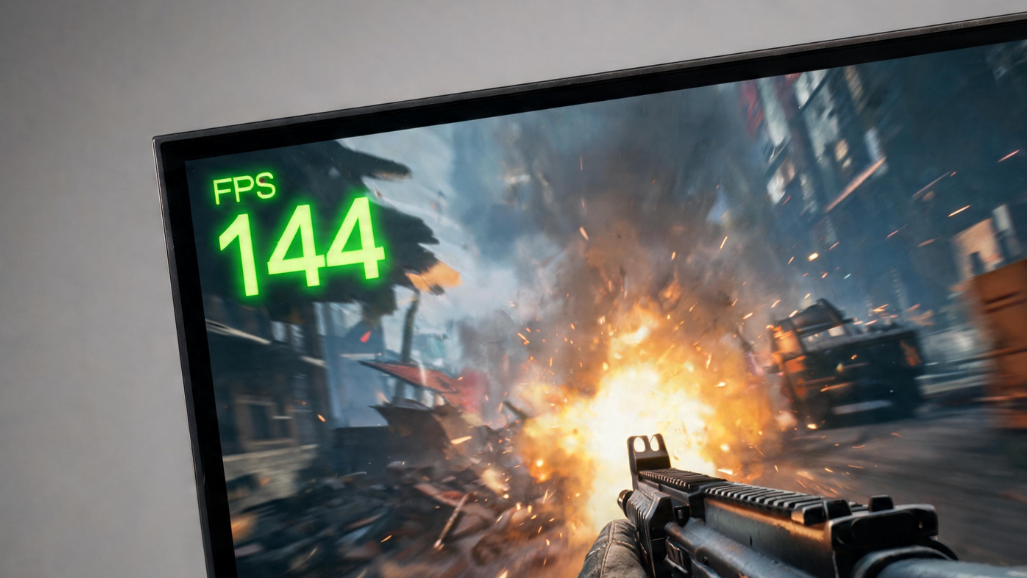
The Steam FPS Counter is a simple yet powerful built-in tool that helps PC gamers monitor their game performance in real time. Integrated within Steam, it displays the number of frames per second (FPS) while playing games, allowing users to understand how smoothly their system is running.
This feature is especially useful for optimizing gameplay, identifying performance issues, and adjusting graphics settings without external software. From enabling the counter to understanding FPS readings and comparing them with advanced monitoring tools, the Steam FPS Counter plays an important role in enhancing the overall gaming experience for both casual and competitive players.
| Key Focus | Main Points |
| Basic understanding | Built-in overlay tool that shows real-time FPS during gameplay |
| Setup process | Open Steam settings → In-Game section → Enable FPS counter → Choose position |
| Screen placement | Top-left, top-right, bottom-left, bottom-right corners |
| Performance optimization | Adjust graphics settings, close background apps, update drivers. |
| FPS performance levels | 30 laggy, 30–60 playable, 60–120 smooth, 120+ very smooth |
| Comparison | Steam is simple; NVIDIA & MSI Afterburner offer advanced monitoring. |
| Fixing problems | Update drivers, lower settings, manage temperature, close apps. |
| Advantages | Easy, lightweight, built-in, no installation required |
| Final summary | Helps optimize gameplay and improve overall gaming experience |
What is the Steam FPS Counter?

The Steam FPS Counter is an overlay tool built into Steam that displays your current FPS while playing games. It appears in a small corner of your screen and updates continuously during gameplay. This feature is especially useful because it allows players to monitor performance without interrupting gameplay or installing additional tools.
It works with most Steam-supported games and helps users analyze how different settings affect performance. The FPS counter is part of Steam’s broader overlay system, which also includes features like chat, browser access, and performance monitoring tools.
How to Enable Steam FPS Counter?
Step 1: Open Steam Settings
Enabling the Steam FPS Counter is simple and takes only a few steps—first, open Steam settings from the top-left menu.
Step 2: Go to the In-Game Section
Then navigate to the “In-Game” section. Here, you will find the option labeled “In-game FPS counter”.
Step 3: Choose FPS Counter Position
From this setting, you can choose where the FPS counter appears on your screen. Once selected, the FPS will automatically show up whenever you launch a game through Steam.
Easy and Hassle-Free Setup
No external downloads or complex configurations are required, making it one of the easiest performance tools available for PC gamers.
FPS Counter Display Options
One of the useful features of the Steam FPS Counter is its flexibility in display positioning. Players can choose where the counter appears on the screen based on their preference.
The available options include:
- Top-left corner
- Top-right corner
- Bottom-left corner
- Bottom-right corner
Each option allows gamers to place the FPS counter in a position that does not interfere with gameplay or HUD elements. For example, competitive players often prefer the top corner to avoid obstructing important in-game information.
Best Settings for Smooth Gameplay
To achieve smooth gameplay, monitoring FPS alone is not enough. Players must also optimize their game settings. Lowering graphical settings such as shadows, textures, and anti-aliasing can significantly improve performance.
It is also important to match game settings with your hardware capabilities. Mid-range systems may need medium settings for stable FPS, while high-end PCs can handle ultra settings with ease.
Keeping background applications closed while gaming also improves performance, as it frees up system resources. Additionally, enabling performance modes in Windows or updating graphics drivers can further stabilize FPS during gameplay.
Understanding FPS Readings
Understanding FPS values helps players determine the quality of their gaming experience.
- Below 30 FPS: The game feels laggy and unplayable for most users.
- 30–60 FPS: Playable but not fully smooth, common on lower-end systems.
- 60–120 FPS: Smooth and responsive gameplay experience.
- 120+ FPS: Extremely fluid performance, ideal for competitive gaming.
A stable FPS is often more important than a very high FPS. Sudden drops in frame rate can cause stuttering and affect gameplay performance even if the average FPS is high.
Steam FPS Counter vs Other Monitoring Tools
Advanced Monitoring Tools
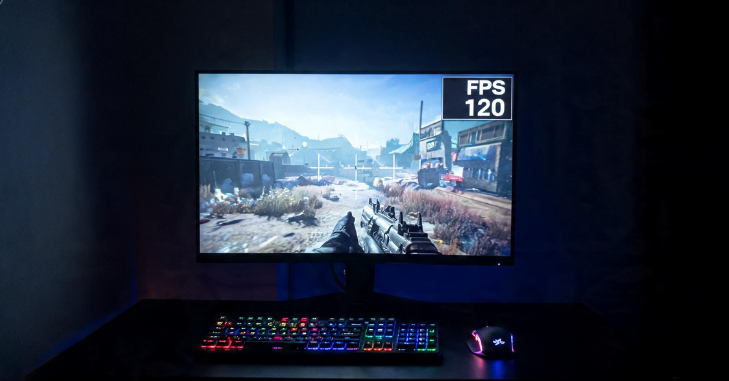
While Steam’s FPS Counter is convenient, other tools also exist for performance tracking. Programs like NVIDIA GeForce Experience and MSI Afterburner offer more detailed system monitoring, including GPU temperature, CPU usage, and frame timing.
Why Steam FPS Counter is Still Popular
However, the Steam FPS Counter remains popular because it is lightweight, easy to use, and does not require additional installation. It is ideal for casual and mid-level gamers who only need basic FPS tracking.
Best Choice for Different Types of Gamers
Advanced users may prefer third-party tools for deeper performance analysis, but Steam’s built-in option is sufficient for most gaming needs.
Troubleshooting FPS Issues
- Sometimes players may experience low FPS or inconsistent performance even with the counter enabled. In such cases, several troubleshooting steps can help improve gameplay.
- Updating graphics drivers is one of the most important fixes, as outdated drivers can significantly reduce performance. Lowering in-game graphics settings can also help stabilize FPS.
- Additionally, checking system temperature is important because overheating can cause performance throttling. Closing unnecessary background applications and ensuring your system meets game requirements are also effective solutions.
Benefits of Using Steam FPS Counter

The Steam FPS Counter offers several advantages for gamers. It provides real-time feedback on game performance, helping users understand how well their system is handling a game. It is also extremely easy to enable and does not require technical knowledge.
The tool is lightweight, does not affect performance, and is integrated directly into the Steam platform. For gamers looking to optimize performance, the FPS counter acts as an essential diagnostic tool that helps identify lag, test settings, and improve the overall gameplay experience.
Conclusion
The Steam FPS Counter is a simple yet powerful feature that enhances the PC gaming experience. By allowing players to monitor real-time performance, it helps optimize settings and ensure smoother gameplay. Whether you are a casual gamer or a competitive player, understanding FPS and using the Steam overlay can significantly improve how you experience games.
With easy setup, flexible display options, and reliable performance tracking, it remains one of the most useful tools built into Steam. In the end, maintaining stable FPS is key to enjoying any game, and Steam’s FPS Counter makes that process easy and accessible for everyone.
Want to know about Games Like Stardew Valley: All About Best Farming Simulation Games Similar to Stardew Valley, Exploration and Adventure-Based Cozy Games, Crafting, Building, and Customization Games, And Much More Check out our Gaming category.
FAQs
Enable Steam’s built-in FPS counter quickly by opening your Steam Settings > In-Game and toggling the Overlay performance monitor to on. Choose your preferred display location, adjust the detail level to show your frame rate, and your FPS will track in real-time.
To turn off the Steam FPS counter, open the Steam client, navigate to Steam > Settings > In-Game, and locate the “In-game FPS counter” (or “Show performance monitor”) setting. Change the drop-down menu to “Off”.
Whether 200 frames per second (FPS) is overkill depends entirely on your monitor’s refresh rate and the types of games you play. For competitive esports, it provides a crucial edge; for casual, single-player games, the processing power is usually better spent maxing out your graphics settings.
The Steam Performance Monitor will detect frame generation technology and break down both the DLSS/FSR frame generation, including FPS, and the actual game FPS over 1-second intervals. Further, the overlay will show the minimum and maximum single-game frame performance within those one-second intervals.